
WordPress Plugins Landscape 2026: Choosing the Right Tools Without Bloat
Every WordPress plugin adds functionality—but also complexity, maintenance overhead, and potential security risks. In 2026, the solution isn’t more plugins; it’s the right plugins. This guide covers evaluating plugins, recognizing bloat, and building a lean, maintainable stack.
The Cost of Plugin Bloat
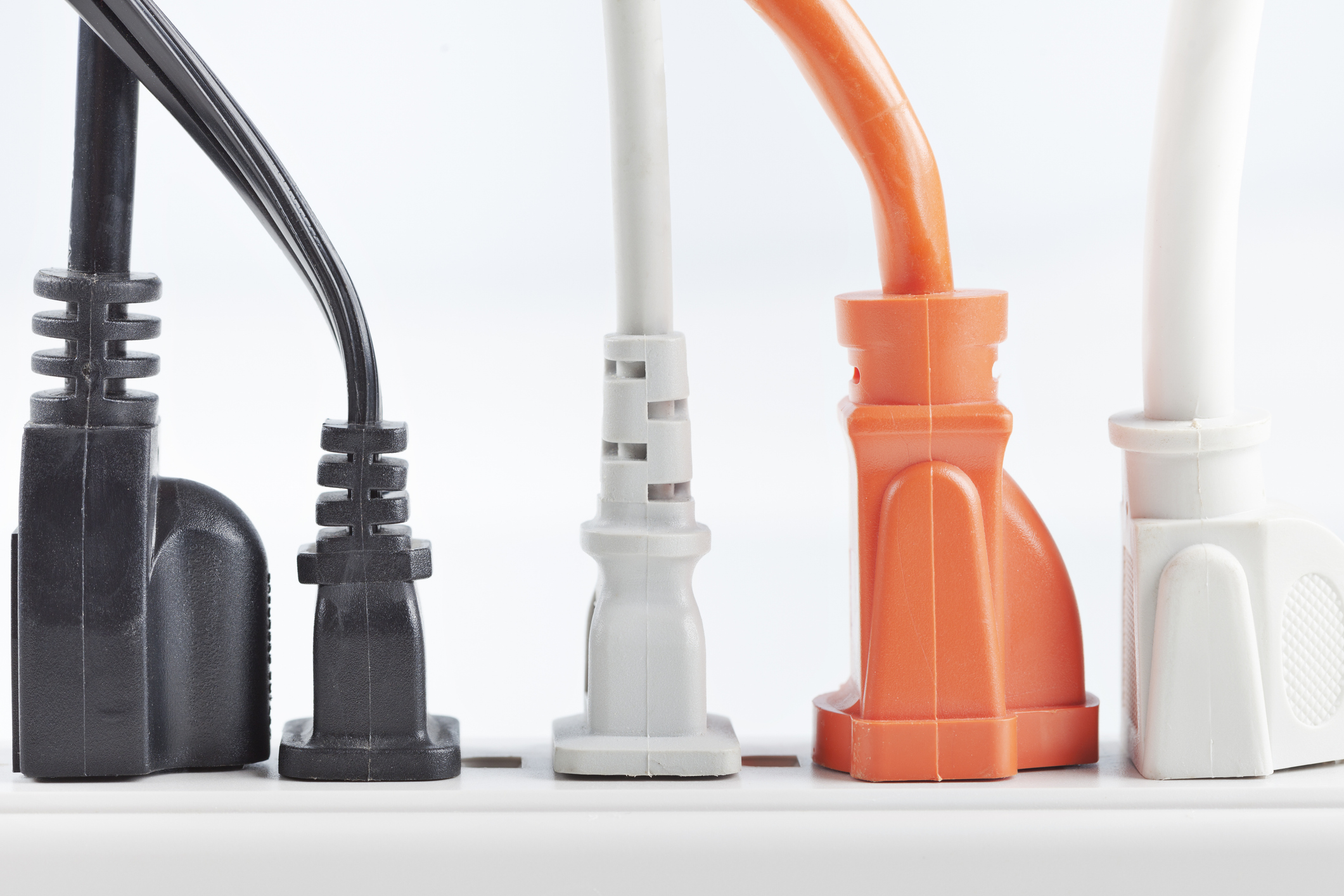
Many WordPress sites run 50+ plugins. Every plugin adds:
- Code to load: More PHP, CSS, JavaScript to parse and execute on every pageview
- Database queries: Plugins store settings, caches, and data; additional queries slow pages
- Security surface: Vulnerable plugins are exploited; the more plugins, the higher the risk
- Maintenance burden: Each plugin needs updates; more plugins = more updates = higher chance something breaks
- Conflicts: Two plugins with conflicting code or overlapping functionality cause errors
The cost compounds: 10 fast plugins is tolerable; 50 slow plugins kills performance and stability.
The rule of thumb: Aim for 10–15 active plugins. More than 20 is red flag. If you have 50+, you have a bloat problem.
Evaluating Plugins: What to Check Before Installing
1. Is It Really Needed?
Before installing, ask:
- Does WordPress core do this natively?
- Does my theme have built-in functionality I’m not using?
- Is there a better way (custom code, service integration)?
Example: WordPress now handles image optimization natively; you might not need a separate optimization plugin. Or a contact form plugin might be overkill if you integrate Gravity Forms with your CRM directly.
2. Author and Maintenance
- Who maintains it? Established companies (Automattic, WP Engine) or solo developer? Companies tend to be more sustainable.
- Update frequency: Look at the changelog. Is it updated regularly (weekly-monthly)? Or is the last update from 2023? Stale plugins = security risk.
- Active support: Check the support forum. Are questions answered within days? Or ignored? Bad support = you’re on your own when issues arise.
- User reviews: Look for patterns. “Stopped working after update” repeated? “Slow performance” mentioned often? Red flags.
3. Performance Impact
Check before installing: Look at plugin documentation. Does it mention performance considerations? Do other users report speed issues?
Test after installing: Run GTmetrix before and after activating the plugin. If page speed drops more than 5%, it might not be worth it, or you need to configure it differently (e.g., disable some features).
4. Security and Vulnerabilities
Use WP Vulnerability Database to check if a plugin has known security issues. Look for:
- Any publicly disclosed vulnerabilities?
- How quickly were they patched?
- Are there recent versions, suggesting ongoing maintenance?
Old plugins with unpatched vulnerabilities are security bombs. Avoid.
5. Code Quality and Philosophy
Look at the code (if publicly available, like on GitHub). Does it feel bloated? Does it follow WordPress coding standards? Can you read and understand it?
Poorly written plugins tend to be slower, less secure, and break more easily.
Essential Plugins (My Recommended Stack)
Here’s a lean, battle-tested stack for most WordPress sites:
- SEO: Yoast SEO or All in One SEO (choose one, not both)
- Security/Backup: SolidSecurity or Wordfence (backup + intrusion detection) OR standalone backup plugin (Updraft Plus, BackWPup)
- Caching (if not on managed hosting with built-in cache): WP Rocket or WP Super Cache
- Image Optimization: Imagify or Smush (if not using server-level tools)
- Contact Forms: Gravity Forms or WP Forms (lightweight alternative)
- Analytics Tracking: MonsterInsights or ExactMetrics (GA4 integration)
- Redirects (if needed): Redirection or Simple 301 Redirects (small, fast)
- Password Protection/Staging: WP Reset or BackWPup (if your host doesn’t provide)
That’s 8–10 essential plugins. Most WordPress sites can run reliably with this.
Plugins to Avoid or Minimize
- Multiple plugins doing the same thing: Don’t run Yoast + All in One SEO together. Don’t use two caching plugins. Choose one per function.
- Page builders: Elementor, WP Bakery, Divi, etc. are heavy, but often required. Choose these with great care.
- Social media auto-posters: Often unreliable; better to post natively to social platforms or use dedicated social management tools.
- Comment plugins (Disqus, etc.): Heavy JavaScript; WordPress native comments work fine and are faster.
- Ad-serving plugins: Heavy on performance. Use ad networks directly (Google AdSense, Mediavine) instead of plugin intermediaries.
- Unused functionality plugins: “Advanced Custom Fields,” “Post Types Magician,” etc.—only if you actually need custom post types. Otherwise, bloat.
Maintenance: Keeping Your Stack Healthy
Monthly Plugin Audit:
- Check for updates; apply them in a staging environment first (test nothing breaks)
- Look for recently updated plugins; stale plugins are potential security risks
- Remove unused plugins immediately (deactivate, then delete)
- Check for plugin conflicts: If site issues start after a plugin update, try deactivating to isolate
Quarterly Security Audit:
- Use Wordfence or similar scanner to check for known vulnerabilities
- Check WordPress plugin repository for security notices
- Update WordPress core and all plugins to latest versions
When to Replace a Plugin:
- It hasn’t been updated in 6+ months
- It has unpatched security vulnerabilities
- It’s causing performance issues and can’t be configured better
- It conflicts with another essential plugin
- Better alternative exists that’s lighter/faster
Key Takeaways
- WordPress plugin bloat—running 50+ plugins—hurts performance, security, and maintainability.
- Before installing any plugin, ask: Is it really needed? Does core/theme already do it?
- Evaluate plugins by: author/maintenance, update frequency, performance impact, security history, code quality.
- Run GTmetrix before/after activating plugins to measure performance impact.
- Aim for 10–15 essential plugins. Avoid redundant plugins doing similar things.
- Audit plugins monthly for updates and security; retire stale/vulnerable plugins immediately.
Clean Up Your Plugin Stack
If you’re running 50+ plugins and your site is slow or unstable, a plugin audit is one of the highest-ROI improvements you can make. We can help identify unnecessary plugins, remove bloat, and optimize your stack. Let’s audit your WordPress plugins.
That’s a really important point about avoiding bloat – it’s easy to get carried away with adding features you don’t actually need. Focusing on core functionality is definitely a smart strategy.