
Website Design for Your Audience: Part 4 – Visual Design & Branding
You’ve architected your site, designed intuitive navigation, and mapped user flows. Now comes the visual layer: colors, typography, imagery, and design elements that shape perception and build trust. This part covers visual design principles and branding consistency—the foundation for a site that looks as good as it performs.
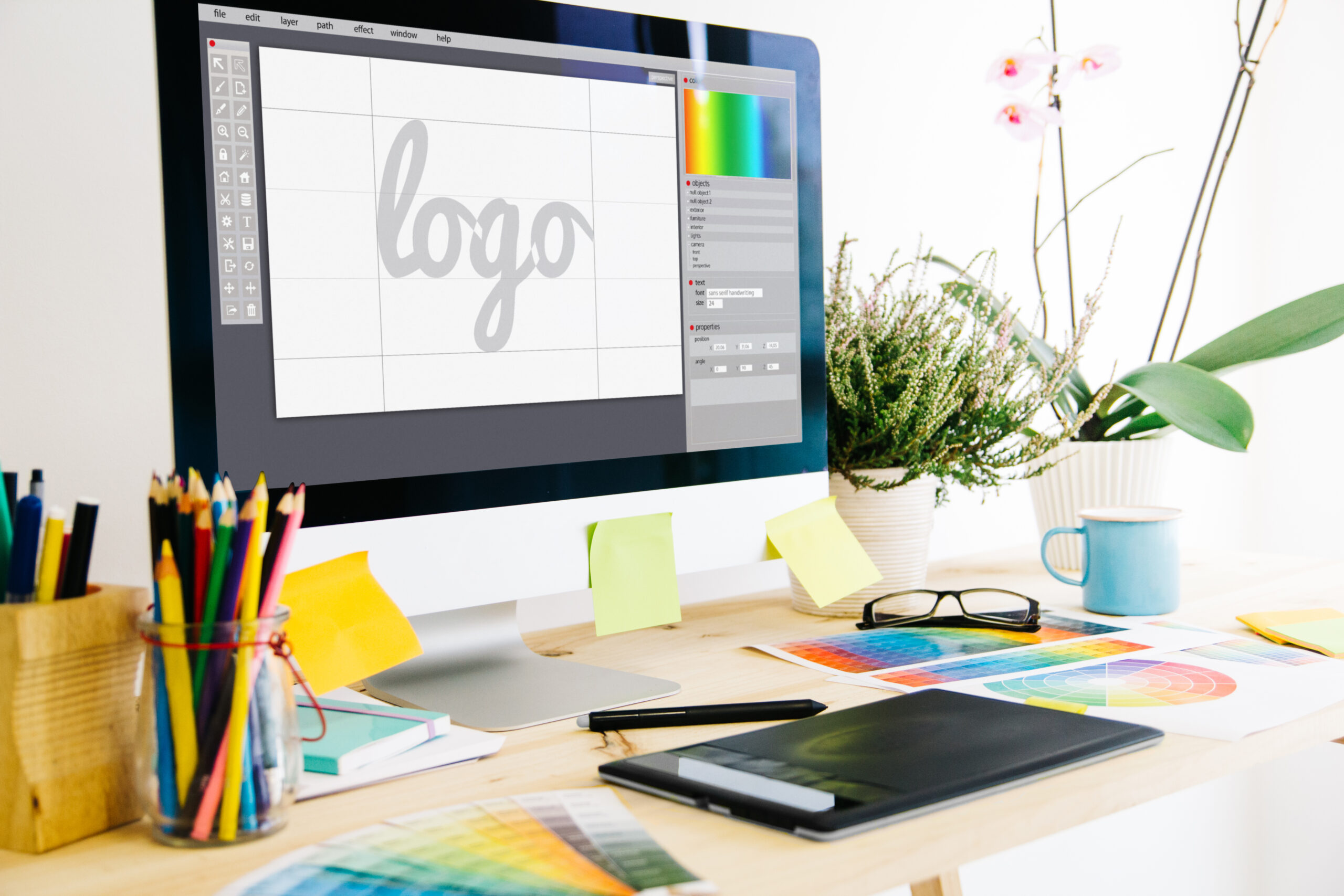
This is Part 4 of the Website Design for Your Audience series—a five-part guide covering the complete process of designing a site around the people you’re trying to reach. Catch up on earlier parts: Part 1: Discovery & Research | Part 2: Information Architecture | Part 3: Navigation & User Flows.
Visual Design Isn't Decoration—It's Strategy
Visual design isn’t about making your site look pretty. It’s about using visual hierarchy, color, and typography to:
- Guide attention to what matters most (your CTA, your value proposition)
- Communicate personality (professional, playful, innovative, trustworthy)
- Build recognition (consistent branding makes you memorable)
- Improve usability (color coding, visual separation of sections, readable typography)
- Signal quality and trustworthiness (polished design = trustworthy company; sloppy design = risky)
Studies show visual design impacts trust, perceived credibility, and conversion rates. A poorly designed site makes prospects assume your business is poorly run, even if your service is excellent.
Color: Choosing Your Palette
Color is the fastest way to evoke emotion and guide attention. Choose your palette intentionally.
Primary Color (Your Brand Color)
This is your signature—used in CTAs, links, highlights. It should:
- Contrast with your background for visibility. If your background is light, use a dark primary. If dark, use light.
- Align with your industry’s expectations and your audience’s psychology:
- Blue: Trust, professionalism (financial, tech, corporate)
- Green: Growth, health, sustainability (wellness, eco, finance)
- Orange: Energy, playfulness, enthusiasm (startups, fitness, food)
- Red: Urgency, passion (sales, deals, alerts)
- Purple: Creativity, luxury (design, premium brands)
- Stand out vs. competitors. If all your competitors are blue, differentiate.
Test your choice: Ask 3–5 target audience members: “What do you feel when you see this color? Does it match how you perceive our business?” Adjust if feedback is misaligned.
Secondary Color (Supporting Accent)
A secondary color adds depth and helps differentiate elements. It should complement (not clash with) your primary. Tools like Coolors.co or Adobe Color generate complementary color schemes.
Neutrals (Background, Text)
Neutrals are your foundation. You need:
- Background: Usually white or very light gray. Avoid pure white (too harsh); off-white (#f9f9f9) is easier on the eyes.
- Text: Dark gray or black for contrast and readability. Avoid pure black (#000000) on white; use dark gray (#222222) for softer, more readable text.
- Light gray: For borders, dividers, subtle backgrounds behind sections.
Application in WP Bakery, Our Preferred Page Builder
WP Bakery makes it straightforward to apply your color system consistently. Apply colors systematically:
- CTAs: Use your primary color on all buttons for consistency and impact
- Section backgrounds: Alternate white sections with light gray sections for visual rhythm
- Highlighted text: Use secondary color to draw attention to key benefits or testimonials
- Icons: Color them with primary or secondary to reinforce branding
- Headings: Use primary color sparingly (maybe first word of main heading) to reinforce brand without overwhelming
Pro tip: Document your color palette with hex codes (e.g., Primary: #2563EB, Secondary: #F59E0B, Dark Text: #1F2937) and store in a shared document or spreadsheet. Consistency across all pages and posts reinforces branding.
Typography: Fonts That Work
Typography—font choice and sizing—impacts both readability and personality.
Choosing Fonts
Limit yourself to 2–3 fonts max. More than that looks disorganized:
- Heading font: Can be more distinctive (e.g., a modern sans-serif or serif with personality). Should be scannable at small sizes on mobile.
- Body font: Should be highly readable at small sizes. Sans-serif fonts (Arial, Helvetica, Open Sans) are safest. Serif fonts (Georgia, Merriweather) feel more traditional but can be fine if large enough.
- Accent font (optional): For quotes, callouts, or special emphasis. Usually similar to heading font but different weight or style.
Web-safe fonts: Use system fonts or Google Fonts (free, widely available):
- Popular heading fonts: Montserrat, Playfair Display, Roboto Bold
- Popular body fonts: Open Sans, Lato, Inter, Source Sans Pro
Performance tip: Each Google Font adds an HTTP request. Load only the styles you use (e.g., don’t load light, regular, bold, and italic if you only use regular). Minimize to 1 Google Font family if possible; use system fonts for secondary styles.
Font Sizes and Hierarchy
Create a clear hierarchy:
- H1 (Page title): 36–48px on desktop; 28–32px on mobile. Use once per page.
- H2 (Section heading): 28–36px on desktop; 22–28px on mobile
- H3 (Subsection): 20–24px on desktop; 18–22px on mobile
- Body text: 16–18px; never smaller than 14px (hard to read)
- Small text (captions, meta): 12–14px
Test on mobile: Is body text readable without zooming? On desktop: Does the hierarchy feel natural?
Line Height and Spacing
Cramped text is hard to read. Set:
- Line height (leading): 1.5–1.6x the font size. For 16px body text, line height should be 24–25px. This gives text breathing room.
- Line length: Limit to 50–75 characters per line (too long = hard to track when reading, too short = choppy rhythm). On desktop, use 2–3 columns to maintain this; on mobile, use 1 column (full width usually works out naturally).
In WP Bakery, set line height in custom CSS or use theme settings if available.
Implementation in WP Bakery
WP Bakery allows font customization per element:
- Custom Heading element: Set font, size, color, weight
- Column Text element: Set body font, size, line height, color
Best practice: Don’t customize fonts in every element. Use your theme’s default settings for consistency, and customize only special cases (hero heading, callout, etc.). This reduces CSS bloat and speeds up page rendering.
Visual Hierarchy and Layout
How you arrange elements on the page guides visitors’ attention.
Principles of Visual Hierarchy
- Size: Larger elements attract attention first. Make your most important element (headline, primary CTA, key benefit) large.
- Color: Bright or contrasting colors draw the eye. Use sparingly to highlight key elements.
- Whitespace: Empty space around an element makes it stand out. Don’t crowd your page.
- Placement: Top-left and center-left; readers scan top-to-bottom, left-to-right. Put your most important content in these zones.
- Weight/boldness: Bold text stands out. Use for key phrases, not entire paragraphs.
Common Page Structures in WP Bakery
Hero Section (Full-width): Large heading, compelling benefit, primary CTA, hero image. Draws immediate attention.
2-Column Section: Text on left, image on right (or vice versa). Breaks up visual monotony; lets you explain + show simultaneously.
3-Column Grid: Three equal boxes (services, features, testimonials). Clean, scannable.
CTA Section: Strong secondary CTA after you’ve explained benefits. Usually centered, contrasting color button.
Alternating Sections: White background, then light gray background, then white again. Creates rhythm and separates concepts.
Testimonials/Social Proof: Quotes or client logos grouped tightly, visually separated from body content. Builds trust before CTA.
Imagery and Visual Consistency
Images make sites memorable and improve engagement, but consistency matters.
Image Style Consistency
Stay consistent in:
- Color tone: If you use warm-toned photos (oranges, golds), stick with that. Don’t mix warm and cool tones randomly.
- Art style: Blend of photos + illustrations is fine, but be intentional. Don’t use 5 different illustration styles.
- Composition: If you use lots of portrait-oriented images, stay consistent. If you switch to landscape, it feels disjointed.
- Filters/effects: If hero images have a slight vignette or color overlay, apply consistently to all hero images.
Icon Usage
Icons break up text and add visual interest. Use a consistent icon set:
- Font Awesome (popular, free tier available)
- Flaticon (tons of icons, free with attribution)
- Your brand icons (if you have custom illustrations)
Don’t mix 3 different icon sets on one page; pick one and stick with it.
Keep embedded images optimized (see Performance post) and use consistent sizing within sections.
Putting It Together: A Design System
Document your visual standards in a simple “style guide” so all pages stay consistent:
Your Design System (Template):
- Primary color: (hex code)
- Secondary color: (hex code)
- Text color: (hex code)
- Background: (hex code)
- Light background: (hex code)
- Heading font: (name, sizes for H1/H2/H3)
- Body font: (name, size, line height)
- CTA button: (color, size, border-radius)
- Spacing: (padding/margin for sections, recommended 16px, 24px, 32px increments)
- Icon set: (Font Awesome / Flaticon / custom, colors)
- Image tone: (warm/cool/neutral, examples for consistency)
Share this with anyone editing your WP Bakery pages. Consistency compounds; your site looks more professional and trustworthy as a result.
Next: Testing & Iteration
You’ve now completed Parts 1–4: audience research, information architecture, navigation design, and visual design. In Part 5, we’ll cover measurement and iteration—how to validate your design with real users, analyze performance, and continuously improve.
Your design checklist:
- ☐ Define your primary, secondary, and neutral colors
- ☐ Choose heading and body fonts; document sizes and hierarchy
- ☐ Create page wireframes/sketches showing visual hierarchy
- ☐ Ensure CTAs are prominently colored and positioned
- ☐ Pick one icon set and use consistently
- ☐ Choose image tone/style and gather sample images for reference
- ☐ Document your design system and share with your team
- ☐ Review existing pages for consistency; identify elements to standardize
Visual design isn’t superficial—it directly impacts how visitors perceive your business and whether they convert. Intentional, consistent design builds trust and professionalism.
Key Takeaways
- Visual design strategically guides attention, builds recognition, and signals trust—it’s not decoration.
- Choose a primary color aligned with industry norms and audience psychology; support with secondary color and neutrals.
- Typography: 2–3 fonts max. Hierarchy matters: H1 > H2 > H3 > body. Readability first (size ≥14px, line height 1.5–1.6).
- Visual hierarchy (size, color, whitespace, placement) directs attention to what matters most.
- Maintain visual consistency: same image tone, one icon set, aligned layout patterns.
- Document a design system (colors, fonts, spacing, icons) to ensure consistency across pages.
Design That Converts
Visual design strategy multiplies the impact of your navigation and content. When research, architecture, navigation, and visual design align, your site feels professional, trustworthy, and conversion-focused. Ready to align your visual design with your business goals? Let’s build a site that looks and performs beautifully.